Introduction
Electro is a blazingly fast image viewer that was originally built with Rust & Tauri 2.0. Following a successful launch, many users requested macOS support so I began working on it. The first major hurdle I encountered is the focus of this blog post. Tauri 2.0's documentation is not the best when it comes to niche issues like this so I ended up spending countless hours experimenting with different approaches. Hopefully, my experience will save others from the same trial-and-error process.
Understanding info.plist properties
To allow your Tauri 2.0 app to appear in macOS's "Open With" menu, you
need to configure the Info.plist file (*plist = property list*).
This file can be created in your
/src-tauri/Info.plist directory.
The Info.plist file contains any metadata about your app which,
in our case, will be used to include file associations. The main property you
need in order to get file associations working is the
CFBundleDocumentTypes property which lets macOS know exactly what
file types your app supports. In the case of Electro, these will be image files
but you can adjust this section to include any file type you want.
Here is a minimal example of what the
CFBundleDocumentTypes section of your
Info.plist file might look like:
<key>CFBundleDocumentTypes</key>
<array>
    <dict>
        <key>CFBundleTypeName</key>
        <string>Image File</string>
        <key>LSItemContentTypes</key>
        <array>
            <string>public.png</string>
            <string>public.jpeg</string>
            <string>public.jpg</string>
            <string>public.gif</string>
        </array>
        <key>CFBundleTypeRole</key>
        <string>Viewer</string>
    </dict>
</array>
In Electro's case not all of the file types are default system types (e.g. .apng, .avif). In this case we need to specify custom file types which was achieved like so:
<key>UTExportedTypeDeclarations</key>
<array>
    <dict>
        <key>UTTypeIdentifier</key>
        <string>org.khronos.avif</string>
        <key>UTTypeConformsTo</key>
        <array>
            <string>public.image</string>
        </array>
        <key>UTTypeDescription</key>
        <string>AVIF Image</string>
        <key>UTTypeTagSpecification</key>
        <dict>
            <key>public.filename-extension</key>
            <array>
                <string>avif</string>
            </array>
            <key>public.mime-type</key>
            <string>image/avif</string>
        </dict>
    </dict>
</array>
Once this metadata file has been added, you can build the app with
npm run tauri build -- --bundles app. Once the .app file is
built, drag it into your Applications folder and when right-clicking
one of the file types specified in the your
Info.plist, you should be able to open your app with that
file.
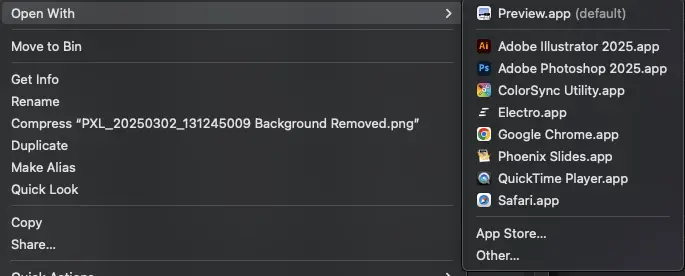
As you can see, Electro.app now appears for .png files!
Setting up backend state
Now that we can open files with our app, we need to actually retrieve the
file's location on the computer. This is very easy on Windows as the "Open
with" function simply runs the executable with
args[0] being set to the file path.
On macOS, as usual, it's not quite so easy.
Instead of using command line arguments, we need to listen to all Tauri
RunEvents
(docs)
as the tauri::RunEvent::Opened event
(docs)
contains any filepaths that were included in the "open with" dialog.
But the event runs before my frontend is ready!
The order that these events are usually executed in might look similar to
Opened, Ready, Window.... This means we can't simply
emit the Opened event's data to the frontend as the listeners won't
be listening yet.
In order to mitigate this, I created an AppState struct which would
contain any opened image source. This state can then be fetched when the frontend
has loaded in. Here is the code that got this functionality working:
use std::sync::{Arc, Mutex};
use tauri::{AppHandle, Emitter, Manager};

#[derive(Default)]
struct AppState {
    opened_image_sources: Arc<Mutex<Vec<String>>>,
}


// This function will be called by the tauri runtime when the application is ready
// Here we will parse the CLI arguments and emit them to the frontend
#[tauri::command]
fn on_image_source_listener_ready(app: AppHandle) {
    #[cfg(target_os = "macos")]
    {
        let state = app.state::<AppState>();
        let opened_image_sources = state.opened_image_sources.lock().unwrap();

        // Remove file:// prefix from all URLs
        let formatted_sources: Vec<String> = opened_image_sources
            .iter()
            .map(|url| url.replace("file://", ""))
            .collect();

        app.emit("image-source", formatted_sources)
            .unwrap_or_else(|err| eprintln!("Emit error: {:?}", err));
    }
}

#[cfg_attr(mobile, tauri::mobile_entry_point)]
pub fn run() {
    let app_state = AppState::default();

    tauri::Builder::default()
        .manage(app_state)
        .plugin(tauri_plugin_fs::init())
        .plugin(tauri_plugin_shell::init())
        .plugin(tauri_plugin_cli::init())
        .invoke_handler(tauri::generate_handler![
            on_image_source_listener_ready,
        ])
        .build(tauri::generate_context!())
        .expect("error while running tauri application")
        .run(|app, event| {
            // MacOS specific event listener for when the app is opened with an image
            if let tauri::RunEvent::Opened { urls } = event {
                let state = app.state::<AppState>();
                let mut opened_image_sources = state.opened_image_sources.lock().unwrap();
                *opened_image_sources = urls.iter().map(|x| x.to_string()).collect();
            }
        });
}
Now all you need to do is have your front end call the
on_image_source_listener_ready when loaded and your
image-source listener will now have access to the
opened_image_sources array.
TL;DR
-
Create
Info.plistto tell macOS which file types to associate with your app - Listen to
tauri::RunEvenet::Openedfor incoming URLs - Send these URLs to your frontend